

Connect a LINE Official Account to ChatBooster
Once your LINE Official Account is connected, you can receive and reply to LINE messages in the Inbox, and use the LINE channel in Automation, Broadcasts and other features.
There are three steps, and you will switch between two LINE consoles: first enable the Messaging API in LINE Official Account Manager, then get the channel details and turn on the webhook in LINE Developers Console.
Before you start
What you need
- A ChatBooster workspace
- A LINE Official Account that you administer
- A free LINE channel slot on your workspace plan
Who you need to be
- An admin of the ChatBooster workspace, or a role with permission to manage channels
Steps
On the ChatBooster workspace home page, find LINE Official Account and click Connect, then follow the three steps on screen.
Step 1: Enable the Messaging API
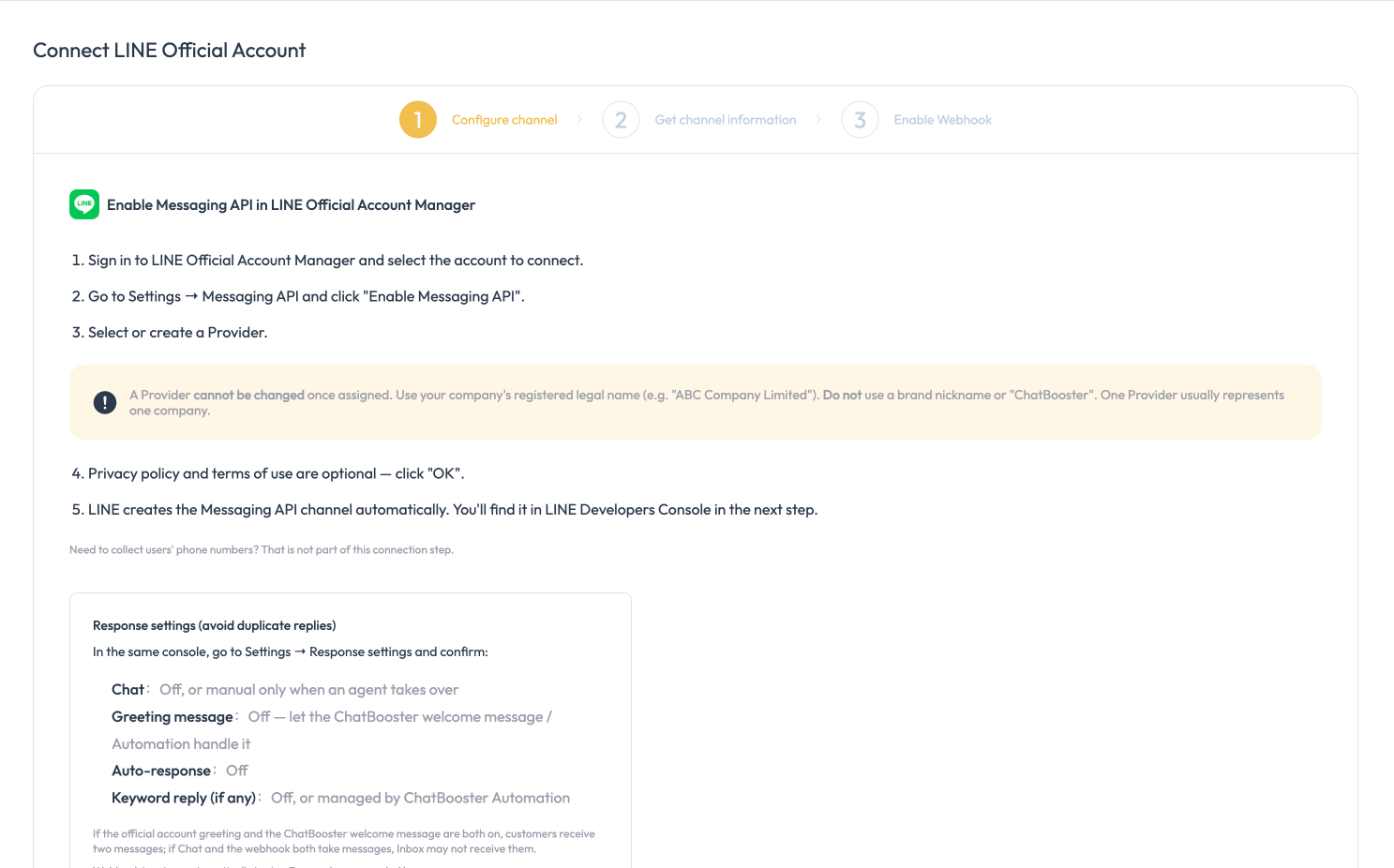
- Sign in to LINE Official Account Manager and select the account to connect.
- Go to Settings → Messaging API and click Enable Messaging API.
- Select or create a Provider.
- The privacy policy and terms of use are optional. Click OK.
LINE then creates a Messaging API channel automatically. You will use it in LINE Developers Console in the next step.
A Provider cannot be changed once it is set
Use your company's full registered name as the Provider name. Do not enter a brand nickname or "ChatBooster". One Provider usually corresponds to one company.
Next, in the same console, go to Settings → Response settings and check the items below so the official account and ChatBooster do not both reply:
| Item | Recommended setting |
|---|---|
| Chat | Off, or manual only when an agent takes over |
| Greeting message | Off. Let the ChatBooster welcome message or Automation handle it |
| Auto-response | Off |
| Keyword reply (if any) | Off, or managed by ChatBooster Automation |
If the official account greeting and the ChatBooster welcome message are both on, customers receive two messages. If Chat and the webhook both take messages, the Inbox may not receive them.
When you are done, go back to ChatBooster, tick the confirmations, and continue.
Step 2: Get the channel details
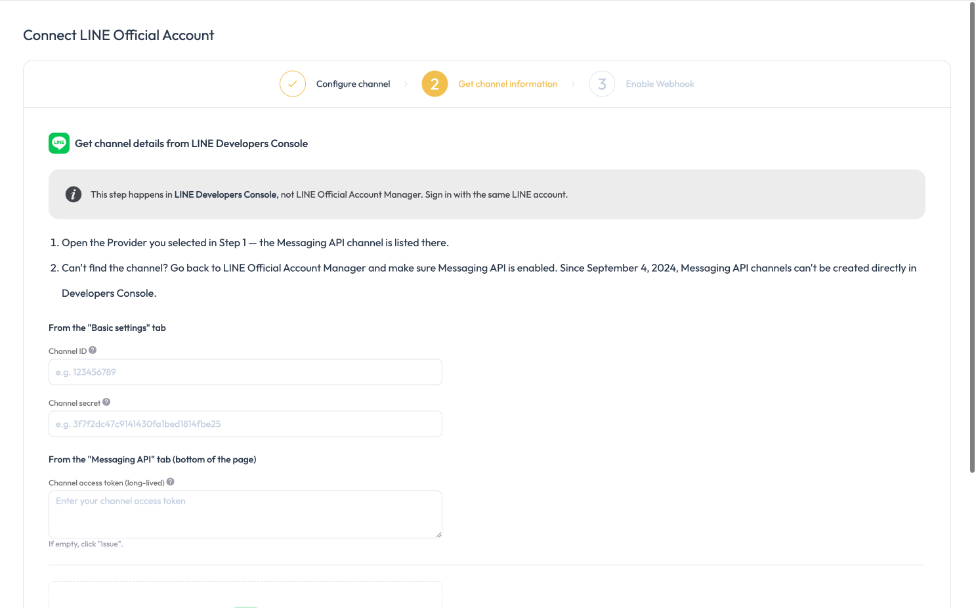
- Sign in to LINE Developers Console with the same LINE account. Note that this is not LINE Official Account Manager.
- Open the Provider you chose in step 1. The Messaging API channel is listed there.
- Copy these three values into ChatBooster:
| Value | Where to find it |
|---|---|
| Channel ID | The Basic settings tab |
| Channel secret | The Basic settings tab |
| Channel access token (long-lived) | The bottom of the Messaging API tab. If it is empty, click Issue |
Can't find the channel?
Go back to LINE Official Account Manager and check that the Messaging API is enabled. Since September 4, 2024, LINE no longer lets you create a Messaging API channel directly in Developers Console. It has to be enabled from LINE Official Account Manager.
Step 3: Enable the webhook
ChatBooster sets the webhook URL for you. There is one thing to do by hand:
- In LINE Developers Console, open the Messaging API tab.
- Turn on Use webhook.
Send a test message
When setup is complete, add the LINE Official Account as a friend on your phone and send a message, then check the ChatBooster Inbox to confirm it arrives.
After connecting
- Message quota: a LINE Official Account has a monthly message quota that resets on the 1st of each month. The first reply within about 25 seconds of a customer's message is free. Everything else counts toward the quota, including welcome messages, messages sent by Automation, and later agent replies. Once the quota is used up, those messages cannot be delivered until you upgrade or buy more in LINE Official Account Manager. You can see this month's usage in ChatBooster under Settings → LINE Official Account.
- Webhook status: under Settings → LINE Official Account you can check at any time whether the webhook is working.
Troubleshooting
| What you see | What to do |
|---|---|
| Access token is invalid | In LINE Developers Console, open the Messaging API tab and copy the long-lived token again |
| Channel ID or Channel secret is incorrect | Check that the values from the Basic settings tab were copied in full |
| Access token and Channel ID belong to different channels | Make sure all three values come from the same Messaging API channel |
| "Use webhook" is not turned on | Turn it on in the Messaging API tab of LINE Developers Console |
| The Inbox does not receive LINE messages | Check the webhook status, and make sure Chat is off in the official account's Response settings |
| Customers receive two welcome messages | Turn off the greeting message in the official account's Response settings |
| The saved access token is no longer valid | The token may have been reissued in LINE Developers Console. Reconnect the channel with the new token |
💡 If you have any questions along the way, contact us at [email protected].