

Connect your online store (E-Commerce)
Once your online store is connected, ChatBooster syncs its customers, orders, products and abandoned checkouts. You can trigger Automation from shopping behavior, such as abandoned checkout recovery, and see the revenue ChatBooster brings in.
Supported platform: Shopify.
Before you start
What you need
- A ChatBooster workspace
- A Shopify store, and a Shopify account that is allowed to install apps on it
- A free store slot on your workspace plan. The number of stores you can connect depends on your subscription plan
- A connected WhatsApp channel is recommended: recovery messages are sent as WhatsApp template messages
Who you need to be
- A role that is allowed to connect stores. Members without this permission can view stores but cannot connect or disconnect them
Steps
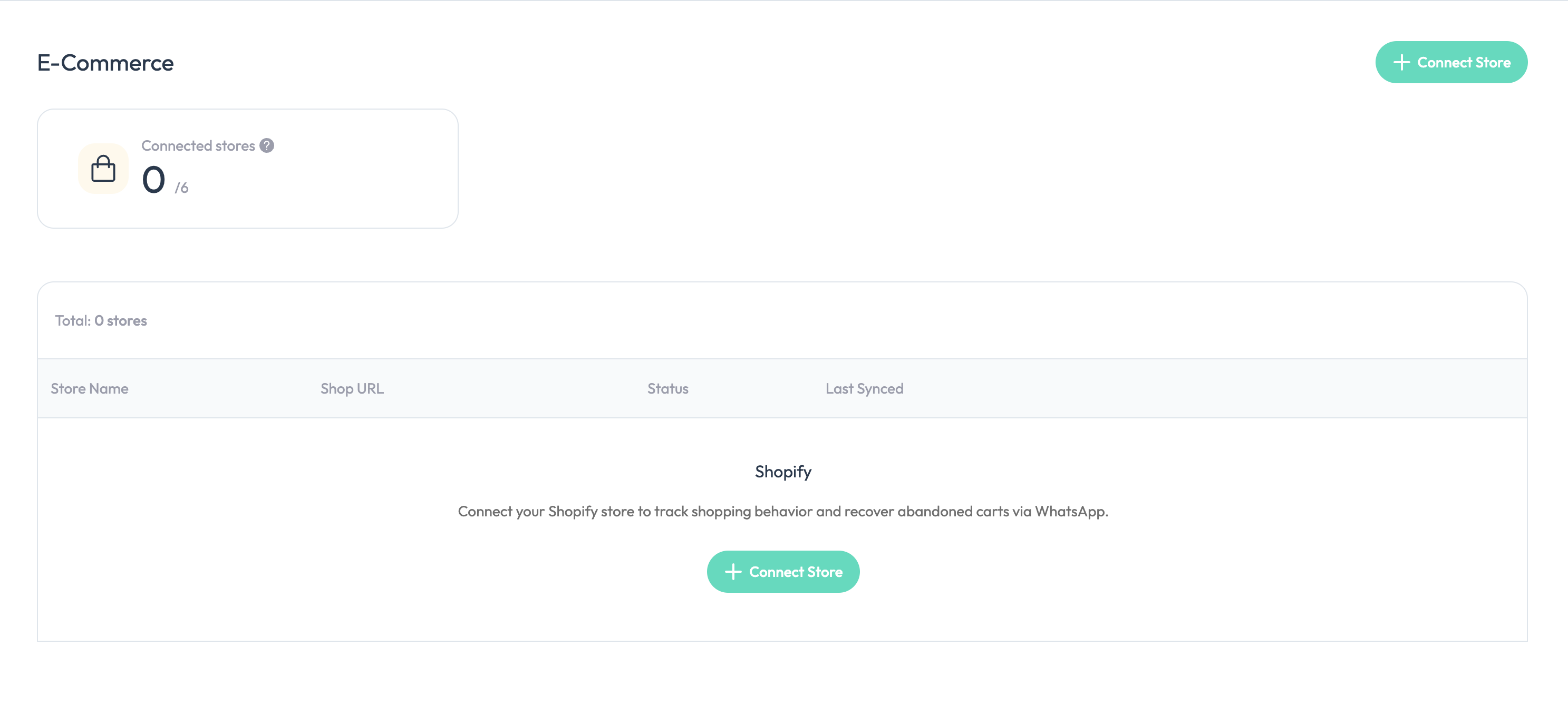
In ChatBooster, go to Settings → E-Commerce and click Connect Store.
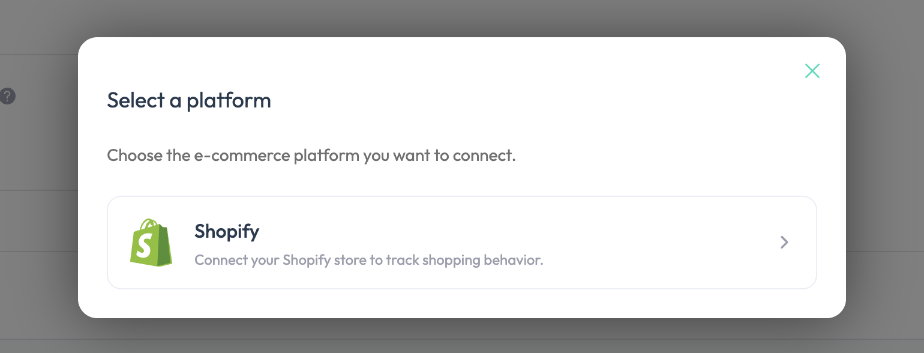
Under "Select a platform", choose Shopify.
You are taken to Shopify. Sign in, choose the store to connect, then confirm the installation and approve the permissions ChatBooster asks for.
When authorization is complete you are returned to ChatBooster. The store appears in the E-Commerce list and the first sync starts.
You do not need to create an app in Shopify or copy any credentials.
Starting from the Shopify admin
If you start the connection by opening the ChatBooster app in your Shopify admin, you are asked to choose which ChatBooster workspace to connect the store to, then to confirm the connection.
Approve every requested permission
If you do not approve all permissions in Shopify, the connection fails and you need to connect again and approve them all. A store can be connected to only one workspace.
After connecting
Data sync
- After connecting, ChatBooster syncs the store's customers, orders, products and abandoned checkouts.
- From then on it syncs automatically once a day between 3:00 and 6:00 AM Hong Kong time. To update right away, click Sync Now on the store page.
Update the marketing consent wording at checkout
By default, the SMS marketing checkbox at Shopify checkout does not mention WhatsApp. In your Shopify admin, go to Settings → Checkout → Marketing options and change the wording to cover WhatsApp as well, so buyers know they may receive WhatsApp messages.
Store settings
Click Settings on the store page to adjust:
| Setting | What it does |
|---|---|
| Store name | Only changes how the store is shown in ChatBooster. It does not rename the store in Shopify |
| Recover only buyers who consented to marketing | When on, abandoned-cart recovery is sent only to buyers who agreed to receive SMS marketing in Shopify (email marketing consent does not count) |
| Recovery cooldown | The same customer receives only one recovery message within the period you set, so they are not messaged repeatedly |
| Revenue attribution | How soon after clicking a link or receiving a message an order must be placed to count as revenue brought in by ChatBooster |
| Sync to Shopify | Sync selected contact tags as Shopify customer tags. You first need to authorize ChatBooster in Shopify to write customer tags |
Trigger Automation from shopping behavior
Once a store is connected, you can use the E-Commerce Event trigger in Automation, for example to send a message when a customer abandons checkout or completes a purchase. See E-Commerce Event trigger (Shopify) for the settings.
Use WhatsApp template messages
Most e-commerce events happen outside the 24-hour customer service window, where regular text or media messages are rejected. Use WhatsApp template messages in these automations.
Disconnect
Click Settings on the store page and choose Disconnect in the Connection section.
After disconnecting, ChatBooster stops syncing the store and stops sending related messages. Data that was already synced is kept, and you can view it again after reconnecting.
Troubleshooting
| What you see | What to do |
|---|---|
| Authorization has expired | Go back to the E-Commerce page and connect again |
| Not enough permissions were granted | Connect again and approve every permission Shopify asks for |
| Failed to connect the Shopify store | Make sure the store is not connected to another workspace |
| Store limit reached | Disconnect a store first, or change your plan |
| Your role cannot connect stores | Ask a workspace admin to give your role permission to connect stores |
| Shopify credentials are no longer valid | Reauthorize from the store settings |
| Sync failed | Click Sync Now to retry later. If it keeps failing, contact us |
💡 If you have any questions along the way, contact us at [email protected].