

E-Commerce Event trigger (Shopify)
Once a Shopify store is connected, you can use the E-Commerce Event trigger in Automation to send messages when a customer abandons checkout, completes a purchase, has an order fulfilled, and so on.
Connect your online store before you start.
Add the trigger
Go to Automation and create or open an automation.
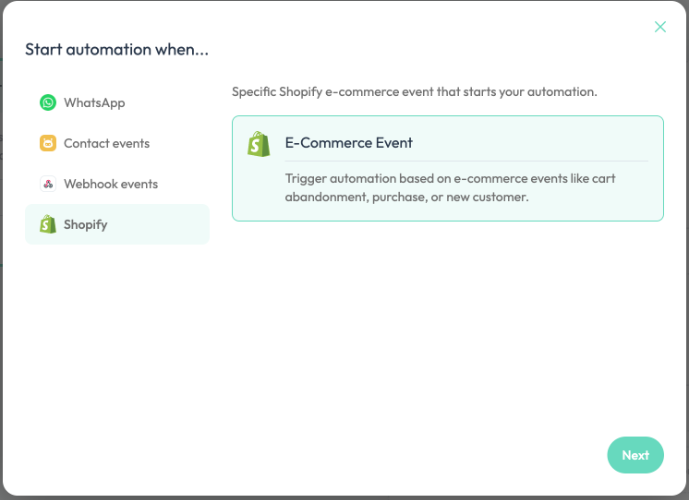
Add a trigger in the trigger block and choose E-Commerce Event under the Shopify category.
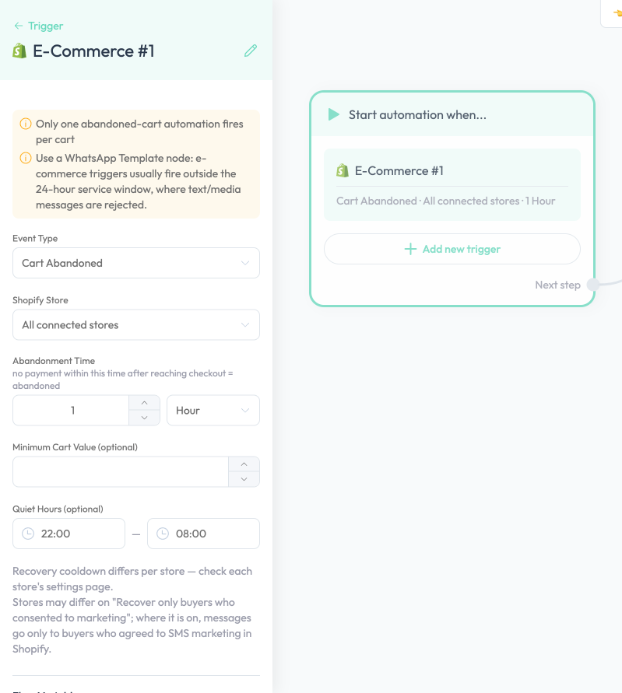
Choose the Event Type and the Shopify Store, then set the delay, filters and quiet hours as needed.
Add message and other blocks after the trigger, then publish the automation.
Use WhatsApp template messages
Most e-commerce events happen outside the 24-hour customer service window, where WhatsApp rejects regular text or media messages. In automations on a WhatsApp channel, use the WhatsApp Template block.
Event types
| Event type | When it fires | Delay setting |
|---|---|---|
| Cart Abandoned | The customer reached checkout and has not paid within the Abandonment Time | Yes (Abandonment Time) |
| Purchase Completed | The customer completes a purchase | Yes |
| New Customer | A customer is first created by a checkout or an order. Customers that were synced when the store was connected do not trigger it | Yes |
| Order Fulfilled | On each fulfillment, including partial ones. Online-store checkout orders only | No |
| Order Cancelled | When the order is cancelled. Online-store checkout orders only | No |
| Order Refunded | When a refund is created. Zero-amount refunds do not trigger it | No |
Order Fulfilled, Order Cancelled and Order Refunded have no delay setting. To wait before sending, add a Wait step in the flow.
Settings
| Setting | What it does |
|---|---|
| Event Type | See the table above |
| Shopify Store | One specific store, or "All connected stores" |
| Abandonment Time | Cart Abandoned only. If the customer has not paid within this time after reaching checkout, the cart counts as abandoned. Default 1 hour, maximum 7 days (191 hours when set in hours) |
| Delay | Purchase Completed and New Customer. How long to wait after the event before the trigger fires. No delay by default |
| Minimum Cart Value / Minimum Order Value (optional) | Cart Abandoned and Purchase Completed only. The trigger does not fire below this amount |
| Quiet Hours (optional) | The trigger does not fire during this period. A new trigger defaults to 22:00–08:00, in the workspace's time zone |
Why Abandonment Time has a maximum
A cart expires after a long period without activity, and no recovery message is sent for an expired cart. If a saved value is above the limit, it is adjusted automatically and the screen tells you so.
How quiet hours behave
- Cart Abandoned: nothing is sent during quiet hours. Carts that are still valid are processed once quiet hours end.
- Other events: if the trigger would fire during quiet hours, it does not fire for that event, and it is not sent later.
If you need a notification to go out at any time of day, such as a shipping notice, clear the quiet hours.
Things to know about Cart Abandoned
- Only one abandoned-cart automation fires per cart. When several abandoned-cart automations target the same store, the one with the shortest Abandonment Time sends first and the others never receive that cart. Disable the others while testing.
- Recovery cooldown. When the store has a recovery cooldown, the same customer receives only one recovery message within that period.
- Recover only buyers who consented to marketing. When this is on for the store, recovery messages go only to buyers who agreed to receive SMS marketing in Shopify.
The last two are set on the store's settings page. See Connect your online store. If an automation is published but nothing is sent, check these two settings first.
Flow variables
The trigger provides the variables below for use in later blocks such as Message and Condition. Which ones are available depends on the event type.
All events
| Variable | Description | Example |
|---|---|---|
customer.name | Customer's full name (first + last) | Chan Tai Man |
customer.firstName | Customer's first name | Tai Man |
customer.email | Customer's email | [email protected] |
customer.phone | Customer's phone number, without + | 85291234567 |
customer.shopifyCustomerId | Shopify customer ID. Empty for guest checkout | 9731049226324 |
store.name | The store's display name in ChatBooster | My Store |
store.url | Store URL. The primary domain is used when a custom one is set | https://example.com |
Cart Abandoned
| Variable | Description | Example |
|---|---|---|
cart.itemCount | Number of distinct items in the cart | 2 |
cart.total | Cart total (two decimal places) | 380.00 |
cart.currency | Cart currency | HKD |
cart.firstItem.name | Name of the first item | Hydrating Serum 30ml |
cart.firstItem.imageUrl | Image URL of the first item | |
cart.lastEventAt | Time of the last add-to-cart or checkout activity | 2026-10-30T14:20:00+08:00 |
cart.checkoutUrl | Recovery checkout link. It restores the original checkout when possible, otherwise rebuilds the cart and goes straight to checkout |
Purchase Completed
| Variable | Description | Example |
|---|---|---|
order.id | Shopify order ID | 6514497355860 |
order.itemsCount | Number of distinct items in the order | 1 |
order.total | Order total (two decimal places) | 1093.99 |
order.currency | Order currency | HKD |
order.firstItem.name | Name of the first item | Hydrating Serum 30ml |
order.firstItem.imageUrl | Image URL of the first item | |
order.createdAt | Time the order was placed | 2026-10-30T13:57:48+08:00 |
Order Fulfilled
| Variable | Description | Example |
|---|---|---|
order.id | Shopify order ID | 6514497355860 |
order.name | Order number as shown in the store admin | #1133 |
order.itemsCount | Number of distinct items in the order | 1 |
order.total | Order total (two decimal places) | 1093.99 |
order.currency | Order currency | HKD |
order.firstItem.name | Name of the first item | Hydrating Serum 30ml |
order.firstItem.imageUrl | Image URL of the first item | |
fulfillment.trackingCompany | Carrier | SF Express |
fulfillment.trackingNumber | Tracking number | SF1234567890 |
fulfillment.trackingUrl | Tracking link | |
fulfillment.isPartial | Whether this is a partial fulfillment (true / false) | false |
Order Cancelled
Includes every order.* variable in the Order Fulfilled table, plus:
| Variable | Description | Example |
|---|---|---|
order.cancelReason | Cancellation reason (a Shopify code such as customer, inventory, fraud) | customer |
order.cancelledAt | Time of cancellation | 2026-10-30T15:10:00+08:00 |
Order Refunded
| Variable | Description | Example |
|---|---|---|
order.id | Shopify order ID | 6514497355860 |
order.name | Order number as shown in the store admin | #1133 |
refund.amount | Amount of this refund | 120.00 |
refund.currency | Refund currency | HKD |
refund.createdAt | Time of the refund | 2026-10-31T10:05:00+08:00 |
Troubleshooting
| What you see | What to do |
|---|---|
| The automation is published but no recovery message is sent | Check the store's "Recover only buyers who consented to marketing" and "Recovery cooldown" settings, and make sure it is not currently quiet hours |
| Only one of several abandoned-cart automations sends | This is expected: a cart only triggers the automation with the shortest Abandonment Time |
| Messages are rejected | Use the WhatsApp Template block instead |
| Late-night shipping or refund notices are not sent | Events that fall in quiet hours do not trigger. Clear the quiet hours to send at any time |
| Existing customers do not trigger New Customer | Customers synced when the store was connected do not trigger it. Only customers created afterwards do |
💡 If you have any questions along the way, contact us at [email protected].